The best floating utility app download for Android depends on what you need to keep visible while using other apps. Float is an overlay-first productivity utility for monitoring stock and cryptocurrency tickers, checking practical tools, and managing tasks without repeatedly switching screens. Its draggable, resizable windows can sit over active apps, making it useful for traders, investors, and Android power users.
What a Floating Utility App Does—and How Float Works
A floating utility app places a compact, interactive window over another active app. Float applies this overlay-first approach to live market data and everyday utilities, so users can keep selected information visible while working elsewhere.
Best Floating Utility App Download for Android Multitasking - What a Floating Utility App Does—and How Float Works
Overlays versus split-screen
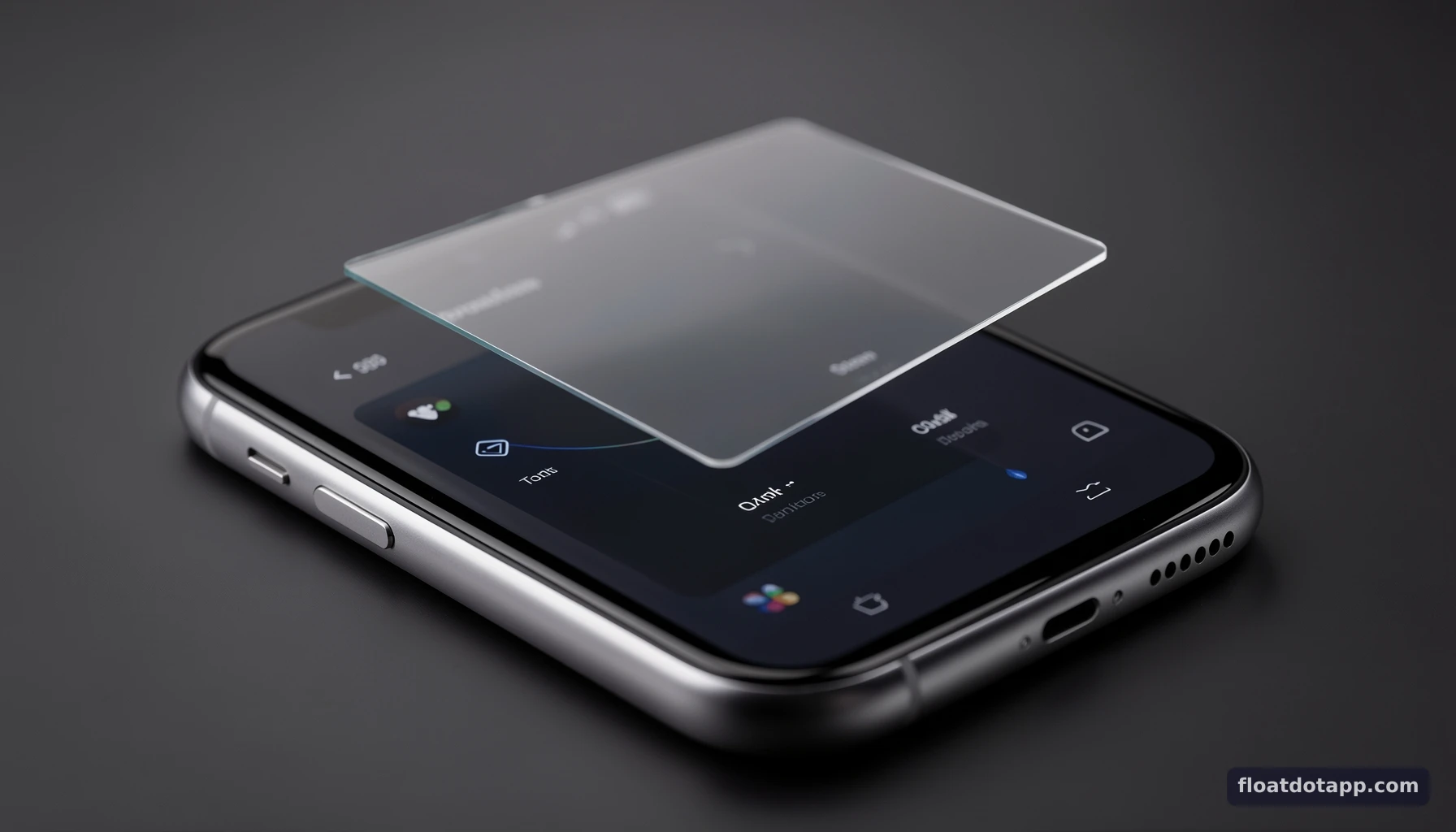
Android split-screen divides the display between two apps. This can work well when both need substantial screen space, but it may leave less room for the primary task. An overlay takes a different approach: a floating window sits above the current app and can be moved, resized, or collapsed as needed.
The distinction matters in workflows where the main app should remain full-screen. A trader, for example, may want to review a chart or read market news while keeping a ticker in view. A student might use a vocabulary tool while reading, or a project worker might consult a calculator without leaving a form.
Floating windows do not replace every multitasking feature. Their usefulness depends on whether the app supports the desired overlay, how much screen space the task requires, and whether the device grants the necessary permission.
Float’s overlay-first architecture
Float provides floating stock and cryptocurrency tickers alongside a suite of more than 25 tools. These include weather, sports scores, calculators, Pomodoro timers, note-taking, floating media overlays for music and video, package tracking, and vocabulary builders.
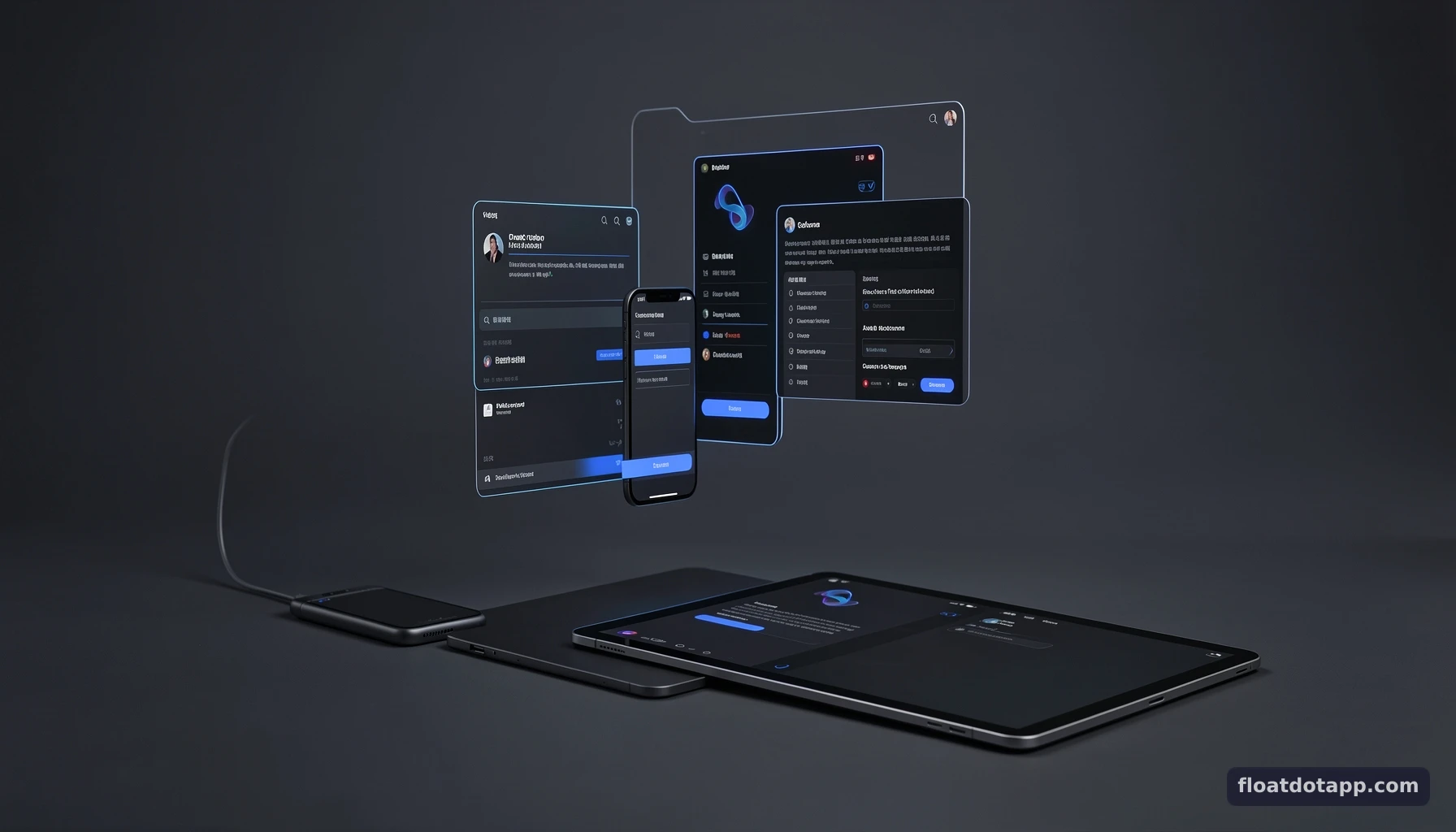
The central design principle is access without app switching. Instead of navigating away from a task to open a utility, a user can activate a relevant floating tool and position it over the current screen. The windows are persistent while in use, draggable, and resizable; users can also collapse them when they need more unobstructed space.
Float is not a trading platform or a substitute for a broker’s execution interface. Its market overlays are for keeping selected market information accessible. Users should confirm time-sensitive details in the appropriate financial service before making decisions.
Who benefits most from floating utilities?
Float is aimed at traders, investors, and power users who need continuing access to information while using other Android apps. The same mechanics can help with less specialized tasks: keeping a timer visible during focused work, checking a calculator while entering figures, or consulting a vocabulary tool while reading.
A floating tool is most valuable when its information is useful in the moment but does not need the whole display. If an activity requires detailed editing, extensive reading, or a large interactive workspace, opening the full app may be more practical. The goal is not to put everything on top of everything else; it is to keep a small, relevant aid within reach.
Technical Specifications and Workflow Mechanics
Float’s defining technical characteristic is its persistent Android overlay interface, which users configure with device permission and then manage while navigating other apps. The table summarizes the documented capabilities and the practical implications for setup and use.
 Best Floating Utility App Download for Android Multitasking - Technical Specifications and Workflow Mechanics
Capability and interaction matrix
| Capability | Documented behavior | Practical use |
|---|---|---|
| Overlay placement | Floating interface can remain over an active app | Keep a selected tool visible while reading, browsing, or working |
| Window interaction | Floating windows can be dragged and resized | Move a ticker away from key controls and adjust its footprint |
| Window visibility | Windows can be collapsed | Temporarily clear screen space without abandoning the workflow |
| Market data tools | Floating tickers for stocks and cryptocurrency | Keep selected market information accessible during other tasks |
| Utility suite | More than 25 tools, including weather, sports scores, calculators, timers, and notes | Bring task-specific utilities into the current app context |
| Media and productivity | Floating music/video overlays, package tracking, and vocabulary builders | Access supporting tools without a full app switch |
| Permission requirement | Overlay permission must be granted for the interface to sit on top of other apps | Review and approve the requested Android permission during setup |
| Availability after trial | Basic note-taking and vocabulary tools remain free after the trial; full utility catalog requires a subscription | Choose tools according to ongoing needs and the app’s current terms |
This is a capability summary, not a guarantee that every Android device will behave identically. Permission screens, background behavior, and display layouts can vary by device and Android version.
Choosing tools by task
A useful selection rule is to activate only tools that support the current workflow. For market monitoring, start with the relevant ticker rather than filling the screen with unrelated utilities. For focused work, a Pomodoro timer may be enough; for a calculation-heavy task, use the calculator and collapse it when finished.
The wider suite can serve different contexts, but each visible window has a cost in screen area and attention. A compact overlay is helpful only if it remains readable and does not obscure the controls you need. Test placement inside the actual app you plan to use, because a position that works on a home screen may cover a button or text field elsewhere.
What to assess before relying on an overlay
Evaluate an overlay utility against the task, not just its number of tools. Check whether the required tool exists, whether it can be positioned without blocking important content, and whether the permission model is acceptable for your device and use case.
For frequent use, also observe behavior during ordinary device changes: switching apps, rotating the screen, resizing the window, and reopening a collapsed tool. Android multitasking options continue to evolve, and device manufacturers may implement features differently. Float’s documented essentials are its overlay permission, persistent interface, and draggable and resizable windows; users should verify their own device’s behavior rather than assume identical performance everywhere.
How to Download, Configure, and Use Float
The practical workflow is straightforward: install Float from its official website, grant overlay permission, select tools, and position them over the apps used in your routine. Test each tool in context before relying on it for repeated work.
Step 1: Install and review permissions
Download Float through the official website at floatdotapp.com. During setup, review the requested permissions and grant the overlay permission needed for the interface to appear above other apps. Android requires this permission for the core floating-window behavior.
Permission names and navigation can differ across Android versions and manufacturers. If the overlay does not appear, revisit the device’s app permission settings and confirm that Float is allowed to display over other apps. Grant only permissions you understand and need for the intended workflow.
Step 2: Select a focused set of tools
Choose the tools that match the immediate task. A market-monitoring setup might use a stock or cryptocurrency ticker alongside a calculator. A study session could use vocabulary support, while a timed work block could use the Pomodoro tool.
Start with one or two overlays. This makes it easier to see whether the windows are readable, whether they cover controls, and whether they genuinely reduce app switching. Add another tool only when it contributes a clear benefit. Float’s features overview provides more context about the available utility categories.
Step 3: Position, resize, and collapse
Open the selected floating tool over the app where it will be used. Drag it to a part of the display that does not obstruct important content, then resize it to balance readability and screen space. If the task changes, collapse the window rather than leaving it over a control or text field.
For example, while reading market news, a user can place a ticker near an unused screen edge, check it periodically, and collapse it when reading a chart or article that requires more room. The same principle applies to a calculator over a data-entry screen: position it near the relevant figures, then move or collapse it before interacting with obscured fields.
Step 4: Validate the complete routine
Test the whole sequence, not just whether the overlay launches. Switch between the apps in the intended workflow, check that the window remains usable, and confirm that its size and position still work after ordinary device interactions. If the display rotates or the device folds, reassess placement rather than assuming the previous layout remains optimal.
A simple implementation checklist:
- Identify the information or utility needed during another task.
- Enable the required overlay permission.
- Activate only the relevant Float tool.
- Place and resize it to protect the primary app’s controls.
- Collapse it when it no longer contributes to the task.
- Recheck the layout after changing apps or display orientation.
Practical Tips, Common Pitfalls, and Use Cases
Floating utilities work best when they reduce a specific interruption without competing with the main task. Good placement, selective activation, and periodic checks help preserve both usability and attention.
Avoiding clutter and blocked controls
The most common usability mistake is opening too many windows at once. Multiple overlays can obscure buttons, cover text, or make the screen feel crowded. Begin with the single most useful tool, then add another only if the workflow remains clear.
Placement should be checked inside each app, not just on the home screen. A ticker positioned harmlessly over a blank area in one app might conceal a navigation button in another. Resize the overlay when possible, move it away from interactive controls, and collapse it before tapping content it may cover.
A second pitfall is treating an overlay as a replacement for the full-featured app behind it. Floating tools are suited to quick reference and lightweight interaction. When a task calls for detailed analysis or extensive editing, switch to the appropriate full-screen application.
Example workflows for different users
Trader or investor: Keep a relevant stock or cryptocurrency ticker visible while reviewing market news or other financial information. Use it as a quick reference, not as a substitute for checking current details in the relevant financial service. Collapse the ticker when it obstructs analysis or the primary app’s controls.
Student or reader: Use a vocabulary builder while working through reading material. Keep the tool small enough that the text remains readable, and collapse it when attention needs to return fully to the page.
Task-focused worker: Run a Pomodoro timer over a work app, or use a calculator while entering figures. These workflows benefit from an at-a-glance tool that can be moved out of the way when the task changes.
In each case, the value comes from reducing a context switch—not from keeping an overlay visible continuously.
Managing attention and device behavior
A persistent window can make information easier to reach, but it can also invite distraction. For market data in particular, decide in advance when the ticker is useful and when it should be collapsed. A constantly visible feed is not automatically a better decision-making environment.
Device behavior also deserves practical testing. Android multitasking has developed beyond traditional split-screen, with platform and manufacturer features evolving over time. In 2026, floating utilities are one approach among native multitasking features and other third-party tools. Assess an app for relevant qualities such as usability over active apps, responsive resizing, and stable behavior during changes in device orientation; do not assume a universal performance score without testing your own device.
Enterprise Considerations, 2026 Outlook, and FAQ
For teams, Float is best evaluated as a mobile workflow aid whose usefulness depends on task fit, permission policies, and device testing. The broader 2026 landscape offers several different approaches to Android multitasking, so selection should follow the work rather than a generic ranking.
Evaluating overlays in managed workflows
Before introducing any overlay utility into a business workflow, identify what information employees need to keep visible and which apps they must use at the same time. Then test the overlay on the organization’s actual devices and confirm that required permissions align with its mobile security policies.
A practical pilot can assess:
- Whether the selected utility supports a repeatable work task.
- Whether the overlay blocks controls or sensitive on-screen content.
- Whether users understand how to grant, review, and manage the required permission.
- Whether the window remains usable during normal app switching and device changes.
- Whether staff can collapse or dismiss it when it is no longer needed.
These are evaluation questions, not claims that Float provides enterprise administration or device-management features. Organizations should verify product capabilities and current terms directly before deployment. The Floatdotapp Blog offers additional Android workflow context.
The 2026 multitasking landscape
As of 2026, Android multitasking includes native split-screen, evolving app-bubble capabilities, manufacturer-specific tools, and third-party overlays. These approaches solve different problems. Split-screen allocates space to two apps; a bubble can provide an app shortcut or compact interaction; an overlay keeps a selected utility above the current app.
Alternative tools also have distinct positioning. Floating Apps (Multitasking) is known as a broad mini-app suite; Samsung Good Lock provides Galaxy-focused customization; Taskbar supports desktop-style freeform windows on compatible devices; and Arc AI Screen Assistant emphasizes AI-assisted screen workflows. These are not interchangeable feature sets, and their suitability depends on device compatibility and the task.
Float’s differentiated focus is its combination of market tickers and a varied floating utility suite in an overlay-first workflow. The right choice is therefore determined by what must remain accessible, how the interface behaves on the target device, and whether the app’s permission requirements fit the user’s needs.
FAQ
What is the best floating utility app download for Android?
There is no single best choice for every Android user. Float is a relevant option for people who want floating stock or cryptocurrency tickers alongside tools such as calculators, timers, notes, weather, sports scores, media overlays, package tracking, and vocabulary support. Its windows can be moved, resized, or collapsed over active apps. Choose based on the utilities you actually need, device behavior, and whether the overlay permission fits your preferences.
How do I make Float appear over other Android apps?
Install Float through its official website, then grant the overlay permission Android requires for windows to appear above other apps. Select a tool and open it while using the app where you want the overlay. If it does not appear, check the device’s app permissions and confirm that display-over-other-apps access is enabled. Settings paths can vary by Android version and manufacturer, so follow the labels shown on your device.
Can I use a floating ticker while working in another app?
Yes. Float’s stock and cryptocurrency tickers are designed as floating overlays that can remain visible over an active app. You can drag or resize a window to fit the workflow and collapse it when you need more screen space. Treat a ticker as an at-a-glance reference rather than a replacement for verifying time-sensitive market information in the relevant financial service.
What should I do if a floating window blocks part of my screen?
Move or resize the window so it avoids the controls and text you need. If the task changes, collapse the overlay and reopen it when it becomes useful again. Test placement in the specific app you are using, because available space differs between screens. Keeping only relevant tools active can also reduce clutter and make it easier to focus on the main task.
FAQ
What is the best floating utility app download for Android?
How do I make Float appear over other Android apps?
Can I use a floating ticker while working in another app?
What should I do if a floating window blocks part of my screen?
Try FloatDot on your phone
Pin live tickers and utilities on a floating dot—7-day Premium trial on Google Play.
Install FloatDot