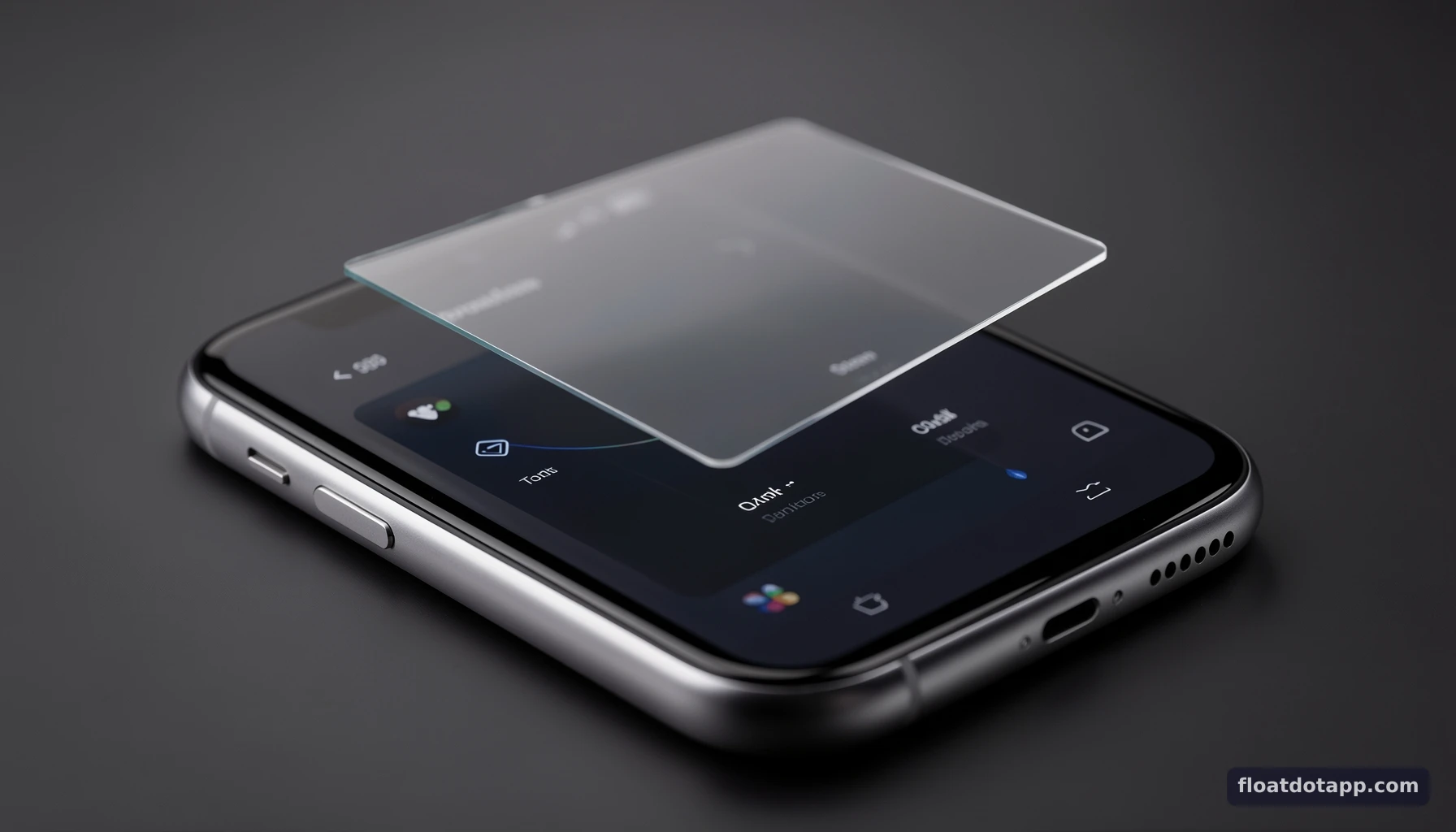
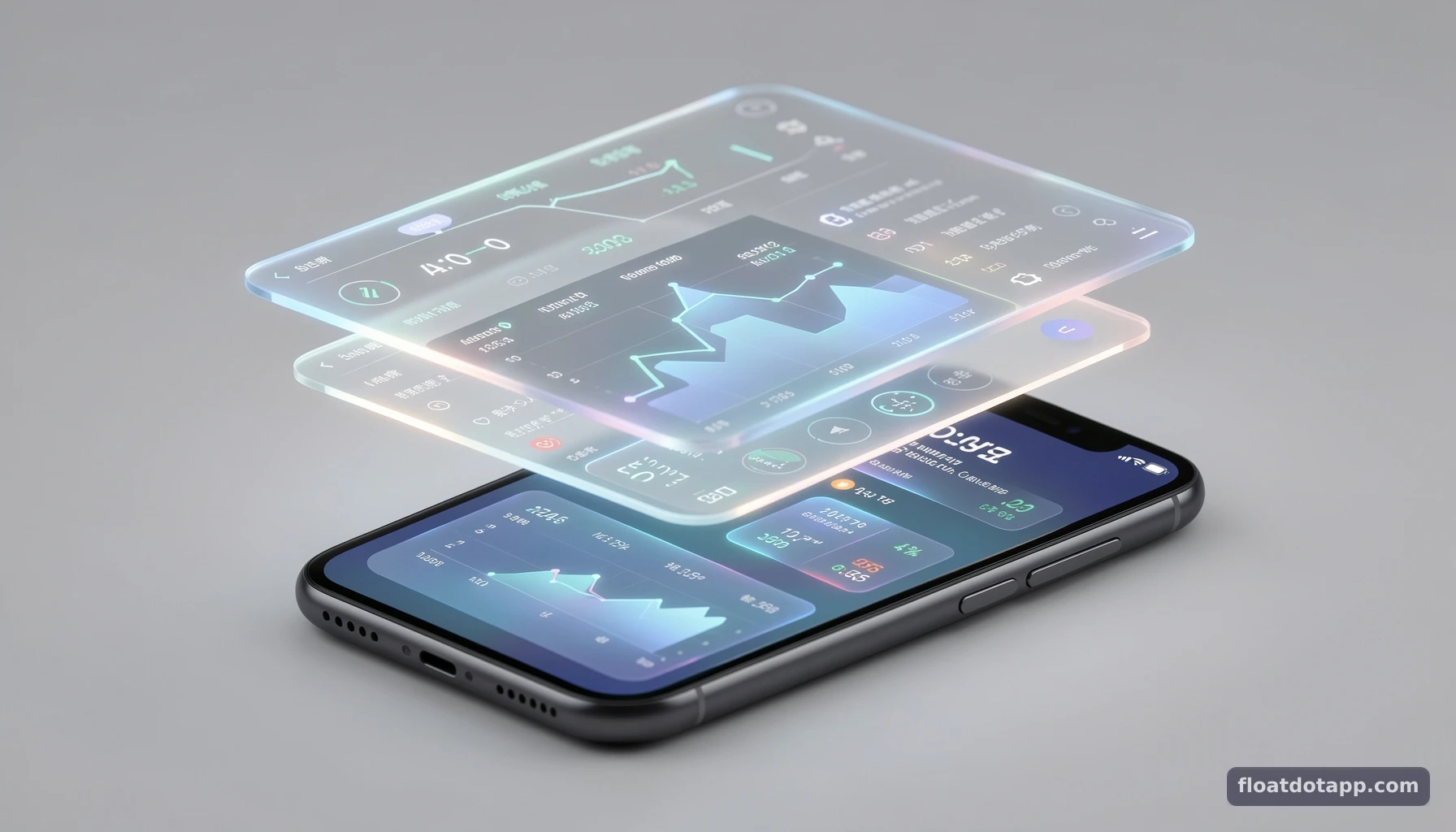
A floating stock ticker Android overlay keeps market information visible while you use other apps, reducing the need to switch screens just to check a quote. The best choice depends on whether you need an always-on-top ticker, a conventional widget, or a full market app. This guide explains how overlays work, how to evaluate them, and how to build a practical Android workflow around one, including choosing a floating utility app for Android multitasking.
What a floating stock ticker overlay does
A floating stock ticker is a compact interface that stays above other Android apps, letting you monitor selected market data without leaving your current task. Unlike a home-screen widget, an overlay can remain visible while you browse, read, or work in another app.
Best floating stock ticker android overlay apps in 2026 - What a floating stock ticker overlay does
Overlay versus widget versus market app
These tools solve related but different problems. A floating overlay prioritizes continuous visibility across apps. A home-screen widget displays information on a launcher screen but generally does not follow you into other apps. A market app provides a broader environment for viewing information, managing watchlists, and conducting research, but requires you to open or return to it.
A traditional Android stock-ticker widget, such as the open-source project listed on F-Droid and GitHub, is a useful point of comparison: it is described as a resizable widget. That does not make it equivalent to an overlay that remains on top of active applications. The practical distinction is where the ticker appears and whether it stays visible during a workflow.
For traders and investors, the overlay model is most useful when the task in the foreground matters as much as the quote: reading a report, drafting notes, reviewing a spreadsheet, or messaging a colleague. It does not replace a full market app for research, nor does visibility alone guarantee that data is real-time or suitable for trading decisions.
How the overlay-first architecture works
An overlay-first design places a persistent, draggable, and resizable interface above the current Android workflow. The user can reposition or resize the ticker to fit the screen, then continue using the underlying app. The central idea is context preservation: market data remains accessible without repeatedly navigating away from the task.
Floatdotapp applies this approach to stocks and cryptocurrency, alongside a broader suite of more than 25 floating utilities. Depending on the selected tool, that suite includes weather, sports scores, calculators, Pomodoro timers, notes, media overlays, package tracking, and vocabulary builders. The practical value is not simply having many tools; it is being able to bring a small, relevant tool into the same on-screen context as other work.
Android overlays can require user permission to display over other apps. Availability and behavior may also depend on Android version, device configuration, and app settings. Treat permission prompts as part of setup, and check the app’s behavior on the device you actually use.
What “best” means for different users
There is no single best ticker for every Android user. A useful evaluation starts with the workflow rather than a feature-count contest.
- For glanceable monitoring: prioritize persistent visibility and easy repositioning.
- For research: use a full market app when you need more than a compact quote display.
- For home-screen checks: a resizable widget may be sufficient.
- For multitasking: an overlay can keep a ticker present while another app remains active.
- For broader productivity: a utility suite can place market information alongside notes, calculators, timers, or other lightweight tools.
Floatdotapp’s overview of its floating stock ticker and Android overlay utilities describes the overlay-first use case. Compare any candidate against your own requirements, including the symbols you follow, how data is presented, and whether the interface interferes with your primary app.
Technical specifications and comparison criteria
The most useful comparison is based on interface behavior and workflow fit, not an unsupported claim that one ticker is universally fastest or most accurate. Before choosing an Android market tool, distinguish what its interface does from what its market-data provider guarantees.
 Best floating stock ticker android overlay apps in 2026 - Technical specifications and comparison criteria
Compare the interface mechanics
The table below separates common Android approaches by where information appears and how users interact with it. It describes interface patterns, not specific data-feed specifications. For example, “floating” means designed to remain over another active app; it does not by itself establish update frequency, exchange coverage, or latency.
| Approach | Where it appears | Interaction and workflow | Best fit |
|---|---|---|---|
| Floating stock ticker overlay | Above an active Android app | Can remain visible while users work elsewhere; may be draggable and resizable | Monitoring quotes while reading, messaging, or using productivity apps |
| Resizable home-screen widget | On an Android launcher screen | Viewed from the home screen; layout can be adjusted where supported | Quick checks between app sessions |
| Full market app | Within its own app interface | Open the app to access its market-focused screens and controls | Research and tasks that need a dedicated market environment |
| Floating utility suite | Above an active Android app | Brings selected tools, such as notes or a calculator, into the current workflow | Users who want market visibility alongside lightweight task tools |
Use the matrix as a starting point, then verify details that matter to your decisions. A ticker that is convenient to see may still have limits in symbol coverage, data freshness, or customization. Those properties should be confirmed from the app and its data disclosures, not inferred from the word “live” or from its overlay design.
Separate display behavior from market-data quality
A ticker has at least two distinct layers: the display layer, which determines how information appears on screen, and the data layer, which determines what information is supplied and how it is updated. A smooth overlay can improve access, but cannot prove that a quote is exchange-real-time, complete, or appropriate for order execution.
When evaluating an app, look for clear answers to these questions:
- Which stocks and crypto assets can you follow?
- Does the app explain the source or timing of market data?
- Can you distinguish delayed information from real-time information?
- What happens when connectivity is weak or the app is in the background?
- Does the interface show enough context to identify the asset and price correctly?
The available Floatdotapp product facts establish floating stock and cryptocurrency tickers and an overlay-first interface. They do not specify exchange-by-exchange coverage, refresh intervals, latency guarantees, or alert mechanics. Users should verify those details directly before relying on a ticker for time-sensitive decisions.
A practical selection checklist
Compare tools against your actual routine rather than relying on a generic ranking. In 2026, Android users still need to distinguish between persistent overlays, launcher widgets, and dedicated market apps: these formats serve different contexts, and they should not be treated as interchangeable.
A compact checklist can make testing more consistent:
- Visibility: Does the ticker remain available while you use the apps that matter?
- Placement: Can you move it away from buttons, text fields, or content you need to see?
- Sizing: Can you make it compact enough to avoid dominating the screen?
- Legibility: Are the asset and displayed value clear at your preferred size?
- Workflow fit: Can you switch between monitoring and your primary task without persistent obstruction?
- Data clarity: Are data source and timing limitations explained?
- Device behavior: Does the overlay behave as expected on your Android version and device?
Floatdotapp’s features overview can help readers understand the range of floating tools available in its approach. It should be read as product information, while market-data details should be assessed separately.
How to set up a floating ticker workflow
A reliable setup begins with a small watchlist and a deliberate screen layout. Add only the information needed for the current task, confirm overlay access, and test the interface in the apps where you intend to use it.
Step-by-step implementation
Use this sequence to establish a practical overlay workflow:
- Define the monitoring task. Decide whether you are checking a few prices while reading, tracking a set of assets during research, or keeping a market reference visible while taking notes.
- Choose the appropriate tool type. Select an overlay for visibility across apps, a widget for launcher-screen checks, or a full market app for research that needs a dedicated interface.
- Install and configure the selected app. Follow its own setup instructions. Do not assume that every Android ticker uses the same permissions or configuration steps.
- Review overlay permission requests. If the app needs permission to appear above other apps, understand the request and enable it only if you want that behavior.
- Choose a focused watchlist. Start with the symbols relevant to the task rather than filling the display with assets you do not need.
- Place and resize the ticker. Move it to an area that does not cover navigation controls, text, or important content in the foreground app.
- Test across your normal workflow. Open the apps you use for research, communication, and note-taking; check readability, obstruction, and whether the overlay remains available as intended.
- Confirm market-data context. Verify what the displayed values represent and whether any timing or coverage limitations apply.
This process is intentionally conservative. It treats the overlay as an information aid, not as a substitute for checking the underlying market source when precision or timing matters.
Build a workflow around the task
A floating ticker is most useful when it supports a specific activity instead of competing for attention all day. For example, an investor reading an earnings summary might keep a small watchlist visible while taking notes. A trader reviewing a chart in another app might use an overlay as a quick reference, then return to a dedicated market interface for more detailed analysis.
The same principle applies to non-market tools. Floatdotapp’s floating utilities include calculators, notes, and Pomodoro timers, among other tools. A user could keep a calculator available while reviewing numbers, or use a timer to structure a focused research session. These examples describe possible workflows; they do not imply that the ticker itself analyzes a company or provides investment recommendations.
Keep the on-screen setup minimal:
- Show only the instruments relevant to the active task.
- Position the overlay outside the content area you need to read or tap.
- Use notes for observations that need to persist beyond the current session.
- Close or move tools that are no longer useful.
A useful overlay should reduce navigation friction without adding enough visual clutter to undermine concentration.
Validate the setup before relying on it
After configuration, test the setup under ordinary conditions and under less convenient ones. Move between the apps you use, rotate the device if that is part of your normal routine, and check the ticker after a network interruption. The point is not to assume that every app behaves identically, but to discover how your specific device and configuration behave.
Confirm three things before treating the display as a working reference:
- The interface behaves as expected: it remains visible or can be reopened as intended.
- The layout is usable: it does not block essential controls or make the foreground task harder.
- The data is understood: you know what the displayed value represents and what limitations apply.
If the overlay disappears, becomes difficult to read, or obstructs an important control, adjust the layout or choose a different tool format. A launcher widget or dedicated market app may be more appropriate for some tasks.
Expert tips, pitfalls, and practical examples
An overlay improves access, but it can also create distraction or false confidence if users mistake persistent visibility for authoritative market data. The best practice is to keep the display purposeful, test its behavior, and treat it as one component of a broader information workflow.
Avoid common setup mistakes
Mistake: treating “always visible” as “always current.” An overlay’s position on screen describes its interface, not its update cadence. Confirm the data timing and source rather than assuming that a visible quote is real-time.
Mistake: making the ticker too large. A large panel may cover the app you are trying to use. Start compact, then expand only if you need more information and can do so without obstructing essential content.
Mistake: tracking too many symbols. A crowded ticker is harder to scan and can turn a glanceable tool into a source of noise. Keep a task-specific list and return to a full market app when you need broader context.
Mistake: overlooking Android permissions. If the ticker cannot appear above other apps, check whether the intended overlay permission is enabled and whether the app’s setup is complete. Permission menus vary by device and Android version, so follow the device’s own instructions rather than relying on a universal menu path.
Mistake: using the overlay as a decision engine. A displayed quote is not a complete investment analysis. Check relevant sources and consider the context of the data before making financial decisions.
Real-world workflow examples
Research while reading: An investor opens a report in a reading app and places a small ticker where it does not cover the text. The overlay provides a quick market reference while the user records observations in a note tool. When the task shifts to deeper research, the user moves to a dedicated market app instead of trying to turn a compact ticker into a full research workspace.
Monitoring while communicating: A power user keeps a short watchlist visible while writing a message or reviewing a shared document. The overlay makes it easier to check selected prices without repeatedly leaving the active app. The user still verifies the relevant information in an appropriate source before acting on it.
Structured focus sessions: A user combines a ticker with a Pomodoro timer for a defined research period. A calculator or floating note may support the session, but each additional panel should have a clear purpose. If the screen becomes crowded, remove tools that are not helping the current task.
These examples illustrate workflow mechanics, not performance guarantees or investment outcomes. The value comes from reducing unnecessary app switching while keeping the user in control of what information is visible.
Pro tips for dependable day-to-day use
Use one primary overlay at a time when working on a small screen. Although a multi-tool suite can support several activities, stacking panels may obscure the underlying app and make interactions harder.
Set a clear role for the ticker: quick reference, not comprehensive analysis. Keep a separate process for checking data definitions, market context, and any information that must be confirmed before action. If the overlay’s behavior changes after an Android update or device setting change, repeat the basic visibility and obstruction tests.
Finally, review your setup periodically. A watchlist created for one project may no longer be relevant. Remove stale symbols, reposition the panel when your workflow changes, and disable overlay access if you no longer need the feature. Good multitasking is selective: the goal is not to keep everything visible, but to keep the right information within reach.
FAQ
A floating ticker is a display and workflow tool, not a substitute for a full market app or a guarantee of real-time data. These answers clarify the main distinctions, setup considerations, and appropriate use cases.
What is a floating stock ticker Android overlay?
A floating stock ticker Android overlay is a compact interface designed to remain visible above other apps, so users can check selected market information without switching away from the current task. Its main difference from a home-screen widget is that it is intended for use over an active app. Overlay visibility does not establish quote accuracy or update frequency; users should verify market-data details separately.
How is a floating ticker different from an Android stock widget?
A stock widget typically appears on the Android launcher screen, while a floating ticker is designed to remain over an active application. A resizable widget can be useful for quick checks from the home screen, but it does not necessarily follow the user into other apps. Choose an overlay for in-workflow visibility, a widget for launcher access, or a full market app when you need a dedicated research environment.
Can I use Floatdotapp’s ticker while using other Android apps?
Floatdotapp’s overlay-first interface is designed to keep floating stock and cryptocurrency tickers visible over other active applications. Its interface is described as persistent, draggable, and resizable, allowing users to position it within their workflow. Actual behavior can depend on Android permissions, device configuration, and app setup, so test the ticker on your own device before relying on it during a particular task.
Does a floating ticker guarantee real-time stock prices?
No. The fact that a ticker floats above other apps describes its interface, not the freshness, source, or exchange status of its data. The available product facts establish that Floatdotapp provides floating stock and cryptocurrency tickers, but do not specify refresh intervals, latency guarantees, or exchange-by-exchange coverage. Check the app’s market-data disclosures and confirm important information with an appropriate source before making time-sensitive decisions.
Try FloatDot on your phone
Pin live tickers and utilities on a floating dot—7-day Premium trial on Google Play.
Install FloatDot